


WordPress Media Offload: How to Move Your Files to the Cloud and Speed Up Your Site
If your WordPress site is growing — more blog posts, more images, more video content — you've probably started to feel the strain. Slow load times, bloated hosting bills, and a media library that's harder to manage every week. WordPress media offload is the solution thousands of site owners and developers use to fix exactly these problems. Instead of storing your media files on your web server, you move them to a cloud platform — freeing up server resources, accelerating delivery, and giving you a centralized hub for all your digital assets. In this guide, we'll walk you through what WordPress media offloading actually means, why it matters, and how to do it the right way with Publitio.
What Is WordPress Media Offload?
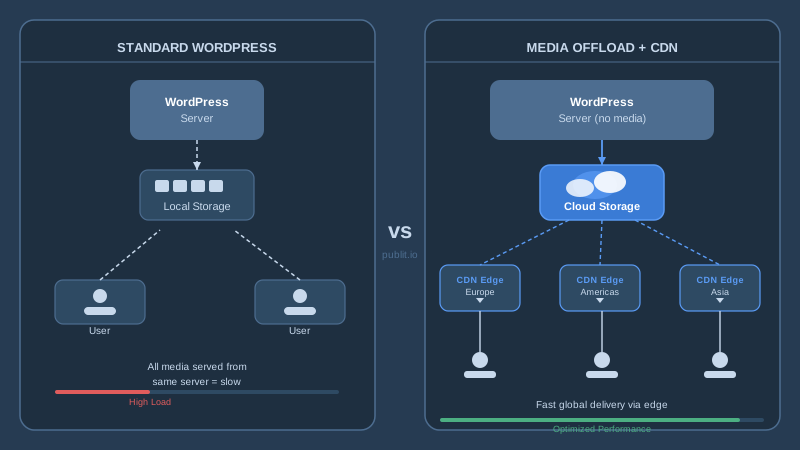
WordPress media offload is the process of moving your uploaded media files — images, videos, audio, documents — away from your local web server and onto a cloud storage or media management platform. Once offloaded, your WordPress site references those files via a CDN-backed URL rather than serving them directly from your server.
This isn't just a storage optimization trick. It's a fundamental shift in how your site architecture handles assets. Your server stops doing double duty as both an application host and a media warehouse. The result is leaner hosting, faster page loads, and a far more scalable media workflow.
There are two main approaches:
- Simple cloud storage offload — files are pushed to an S3-compatible bucket or object storage. You save disk space, but delivery speed and media management features are limited.
- Full media platform offload — files are pushed to a dedicated media platform like Publitio, which combines cloud storage with CDN delivery, image optimization, video transcoding, and a powerful API. This is the approach that delivers real performance gains.
For most serious WordPress publishers, the second approach is the clear winner.
Why Your WordPress Site Is Struggling Without Media Offload
Let's look at the real costs of keeping media on your web server. These aren't hypothetical edge cases — they're problems that affect almost every growing WordPress site at some point.
Server Storage Fills Up Fast
Every image WordPress generates creates multiple resized versions. Upload a single photo and WordPress might generate five or six thumbnail sizes automatically. Upload a few thousand photos and you're looking at tens of thousands of files eating into your disk quota. Many shared and even managed WordPress hosts impose strict storage limits, and overages can get expensive quickly.
Media Delivery Taxes Your CPU and Memory
When a visitor loads a page on your site, your server has to handle the PHP execution for WordPress and simultaneously serve every image, video thumbnail, or audio file on that page. Under traffic spikes, this combination can overwhelm even moderately spec'd servers. Response times suffer, and in worst-case scenarios, the server goes down entirely.
No Built-In Optimization
WordPress itself doesn't optimize your images or transcode your videos. What you upload is largely what gets served. Without a dedicated media platform in the pipeline, you're relying on plugins that add more overhead to an already burdened server, or you're simply serving unoptimized files to your visitors.
Backup and Migration Headaches
A WordPress database backup is relatively small and fast. But a full backup that includes your uploads folder — potentially gigabytes of media — is slow, expensive, and sometimes skipped entirely. When you migrate to a new host, those files have to move too. With media offloaded to the cloud, your WordPress installation is lightweight and portable.
How WordPress Media Offload Works with Publitio
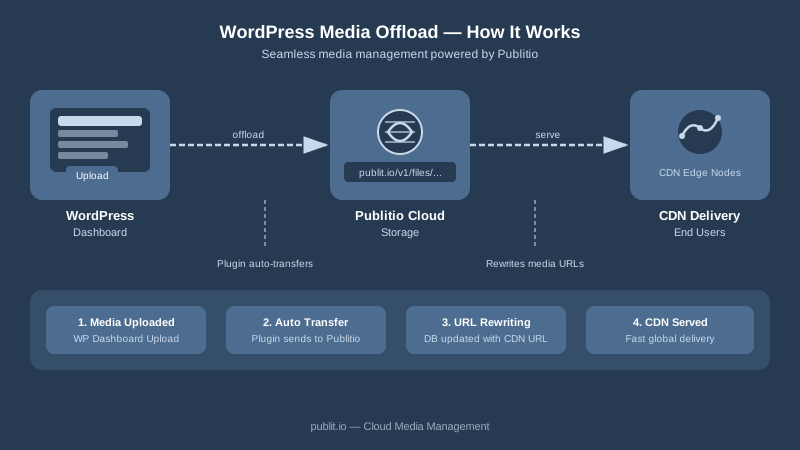
Publitio's WordPress media offloading solution is designed to integrate directly with your existing media library workflow. Here's how the process works in practice:
Step 1: Install the Publitio WordPress Plugin
After creating your Publitio account, you install the Publitio WordPress plugin and connect it to your account using your API credentials. The setup takes a few minutes and requires no code changes to your theme or existing content.
Step 2: Offload Existing Media
The plugin can bulk-offload your existing WordPress media library to Publitio's cloud. Files are uploaded to your Publitio account and the references in your WordPress database are updated automatically so that URLs point to the Publitio CDN. Your pages and posts continue working exactly as before — editors and visitors notice nothing except faster load times.
Step 3: Automatic Offload for New Uploads
Once configured, every new file you upload through the WordPress media library is automatically sent to Publitio. Your media stays organized in Publitio's digital asset management interface, where you can browse, search, tag, and manage files independently of WordPress if needed.
Step 4: CDN Delivery Kicks In
Every file served through Publitio is delivered via a global CDN, meaning visitors get assets from an edge node close to them geographically. Images load faster. Videos buffer less. Your server is no longer in the critical path for media delivery.
Key Benefits of Using Publitio for WordPress Media Offload
A generic cloud storage bucket can technically host your files, but Publitio's platform goes far beyond simple storage. Here's what makes it a purpose-built choice for WordPress publishers who want to get serious about media performance.
Automatic Image Optimization and Transformation
Publitio's image management capabilities include on-the-fly resizing, format conversion, compression, and cropping — all controlled through URL parameters. You don't need a separate image optimization plugin. When a page needs a 400px-wide WebP thumbnail, Publitio generates and caches it automatically. Serve the right image to the right device, every time.
Professional Video Hosting and Streaming
If you're embedding video on your WordPress site, hosting it on your own server is almost never the right call. Publitio offers full video management with video processing and GPU-accelerated video conversion. Uploaded videos are automatically transcoded into adaptive bitrate formats, then delivered via HLS streaming — the same technology used by major streaming platforms. Viewers get smooth playback regardless of their connection speed.
Built-In Digital Asset Management
As your media library grows, organization becomes critical. Publitio's media asset management platform gives you folders, tags, search, and metadata management across all your files. If you run multiple WordPress sites, you can manage all their media from a single Publitio account — a significant operational advantage over juggling separate storage buckets or plugin configurations.
Watermarking and Content Protection
For photographers, videographers, and content creators who need to protect their work, Publitio offers automatic watermarking for images and videos. Watermarks can be applied dynamically without altering the original file — you can always access or serve the clean version when needed.
Analytics and Insights
With media analytics, you can track how your files are being accessed — views, bandwidth consumption, geographic distribution of requests. This is data your web server logs can technically provide, but Publitio surfaces it in a dashboard built specifically for media performance monitoring.
WordPress Media Offload for Developers: The API-First Approach
The WordPress plugin is the easiest entry point, but Publitio is fundamentally an API-first platform. If you're a developer building on top of WordPress — headless setups, custom themes, multisite networks, or WooCommerce stores — you have direct access to the full Publitio API to integrate media management exactly as your architecture requires.
The video API lets you programmatically upload, transcode, tag, and retrieve video assets. You can build upload flows directly into custom admin interfaces, trigger processing pipelines from your own code, and generate signed delivery URLs for protected content. The full API reference is available in the developer documentation.
For teams building video-heavy WordPress applications, Publitio also offers video-on-demand infrastructure and digital rights management capabilities — giving you the tools to build premium content experiences with proper access control and encryption.
How Much Does WordPress Media Offload Cost?
The cost question is often what holds site owners back from making the switch — but in most cases, offloading media to a dedicated platform is cheaper than the alternative when you factor in everything.
Consider what you're currently paying for:
- Web hosting at a tier that can handle your media storage and traffic
- Image optimization plugins (many premium plans charge $50–$200/year)
- Video hosting on separate platforms like Vimeo or Wistia
- CDN add-ons or separate CDN subscriptions
- Backup solutions that have to handle multi-gigabyte media folders
Publitio consolidates all of these into a single platform. With generous free tier options and scalable paid plans, you can start small and grow your usage as your site grows. Check the pricing page for current plan details and to find the tier that fits your usage.
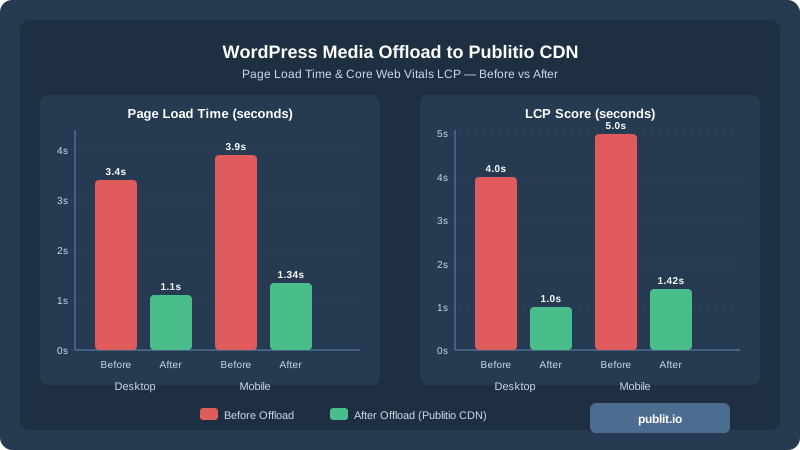
Beyond the direct cost comparison, there's the less quantifiable but very real business value of faster page load speeds. Page speed directly affects SEO rankings and user experience metrics. Google's Core Web Vitals include Largest Contentful Paint (LCP), which is heavily influenced by how quickly your largest on-page media element loads. Offloading media to a CDN-backed platform like Publitio is one of the most direct ways to improve your LCP score.
Common Questions About WordPress Media Offload
Will my existing WordPress URLs break?
No. The Publitio plugin rewrites the media URLs in your WordPress database to point to Publitio's CDN. From a visitor's perspective and from an SEO perspective, media simply loads from a different domain — typically faster than before. Your existing content continues working without any manual edits to posts or pages.
Can I keep a local copy of files on my server?
Yes. The plugin can be configured to keep local copies on your server while also serving files from Publitio. This is useful as a transitional setup or if you want a local fallback. Most users choose to remove local copies once they're confident in the cloud setup — this is what frees up the most disk space.
Does this work with WooCommerce product images?
Yes. WooCommerce product images are managed through the standard WordPress media library, so they're fully compatible with Publitio's media offload plugin. Offloading them to Publitio means your product images benefit from the same CDN delivery, optimization, and transformation features as the rest of your media.
What about audio files?
Publitio supports audio asset management through its audio management solution. Podcasters and music-focused WordPress sites can offload audio files alongside images and video, with consistent CDN delivery across all file types.
Is there a limit on file size or storage?
Limits depend on the plan you're on. Review the pricing page for specifics on storage quotas, bandwidth, and per-file size limits for each tier.
Getting Started with WordPress Media Offload
The technical barrier to setting up WordPress media offload is lower than most site owners expect. The Publitio plugin is designed for non-developers to configure through the WordPress admin interface, with sensible defaults that work well for most sites straight out of the box. Developers who want more control have the full API and documentation available from day one.
A typical migration — from installing the plugin to having your full existing media library offloaded — can be completed in a single afternoon. After that, the process is entirely automatic. Every new upload goes straight to the cloud without any additional steps from you or your editors.
The sites that benefit most from WordPress media offload are those that have grown past the basics: publishers with hundreds of posts and image-heavy layouts, businesses with video content embedded throughout their site, agencies managing multiple WordPress installations for clients, and e-commerce stores where product image performance directly impacts conversion rates. If any of those descriptions fit your situation, media offload isn't a nice-to-have — it's a practical necessity.
Ready to Offload Your WordPress Media?
Slower load times, bloated servers, and disorganized media libraries are problems you don't have to live with. Publitio gives you a complete cloud media platform — CDN delivery, image optimization, video transcoding, HLS streaming, digital asset management, and seamless WordPress integration — all under one roof. Create your free Publitio account at publit.io and start moving your WordPress media to the cloud today. Your site's performance — and your visitors — will thank you for it.


